

When you open Crafty Quiz you will see the home screen and all your games will shown.
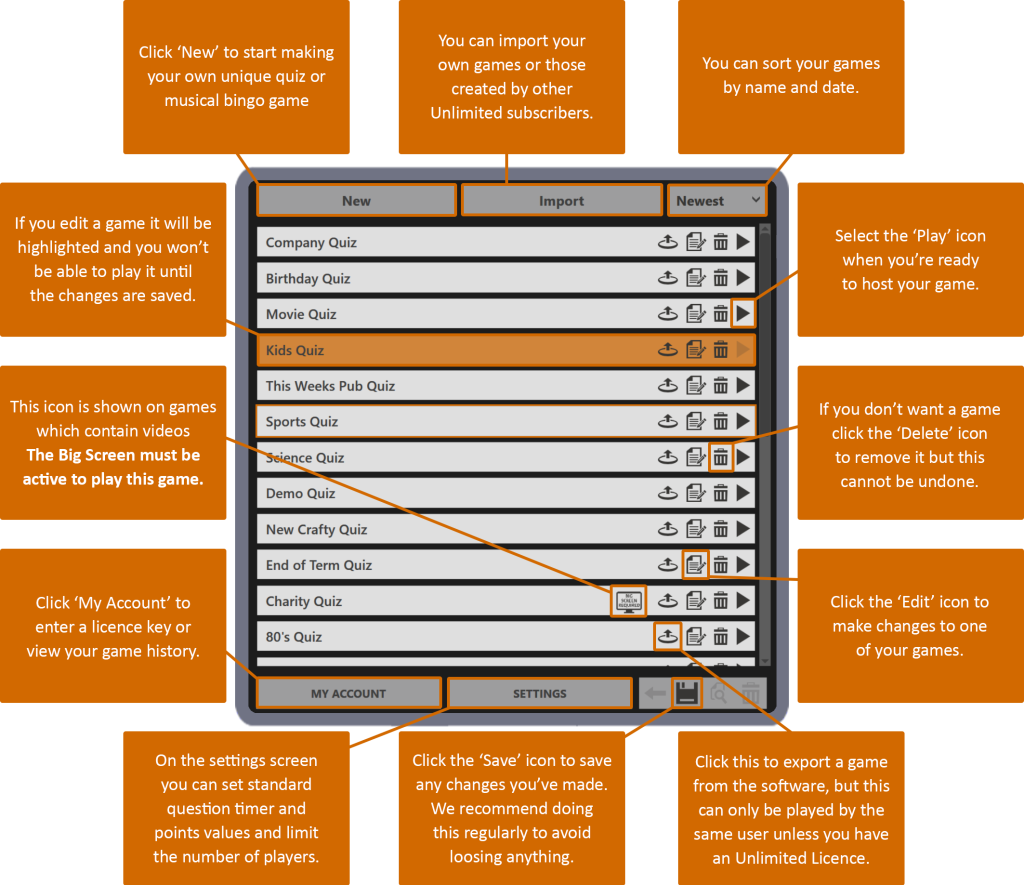
On this screen, you will see all the rounds currently included in this quiz.
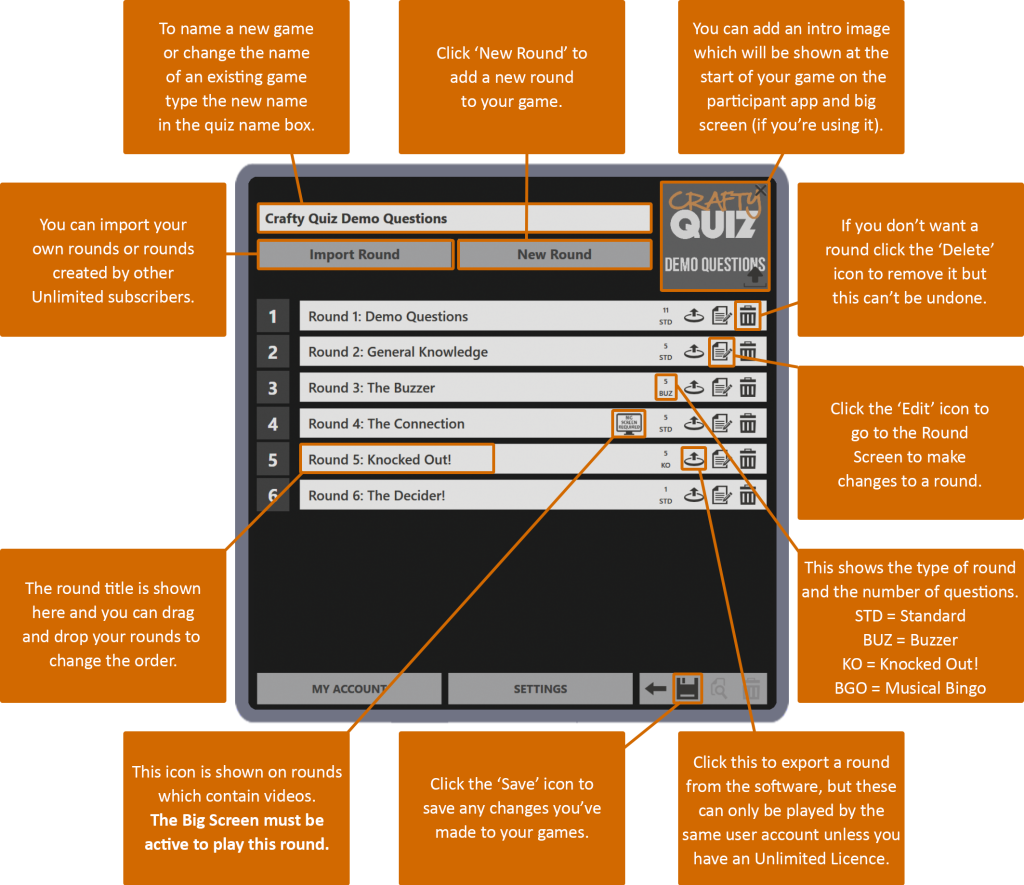
On this screen, you will see all the questions currently included in this round.
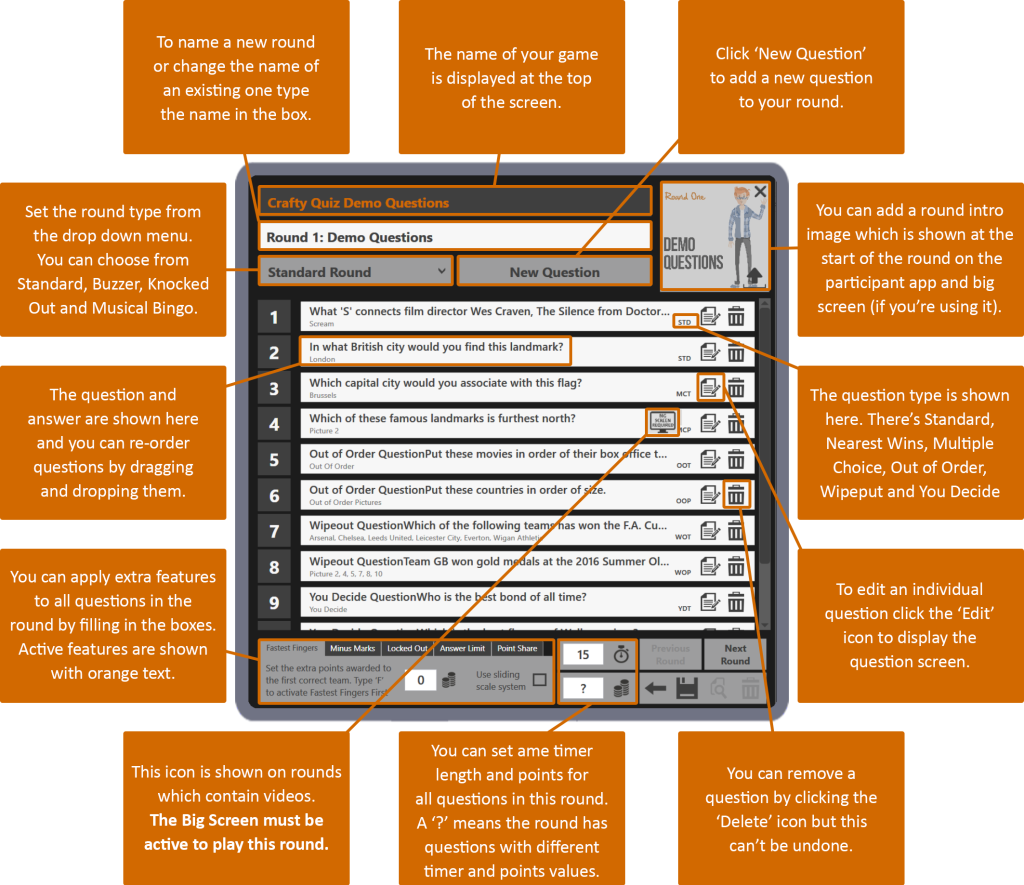
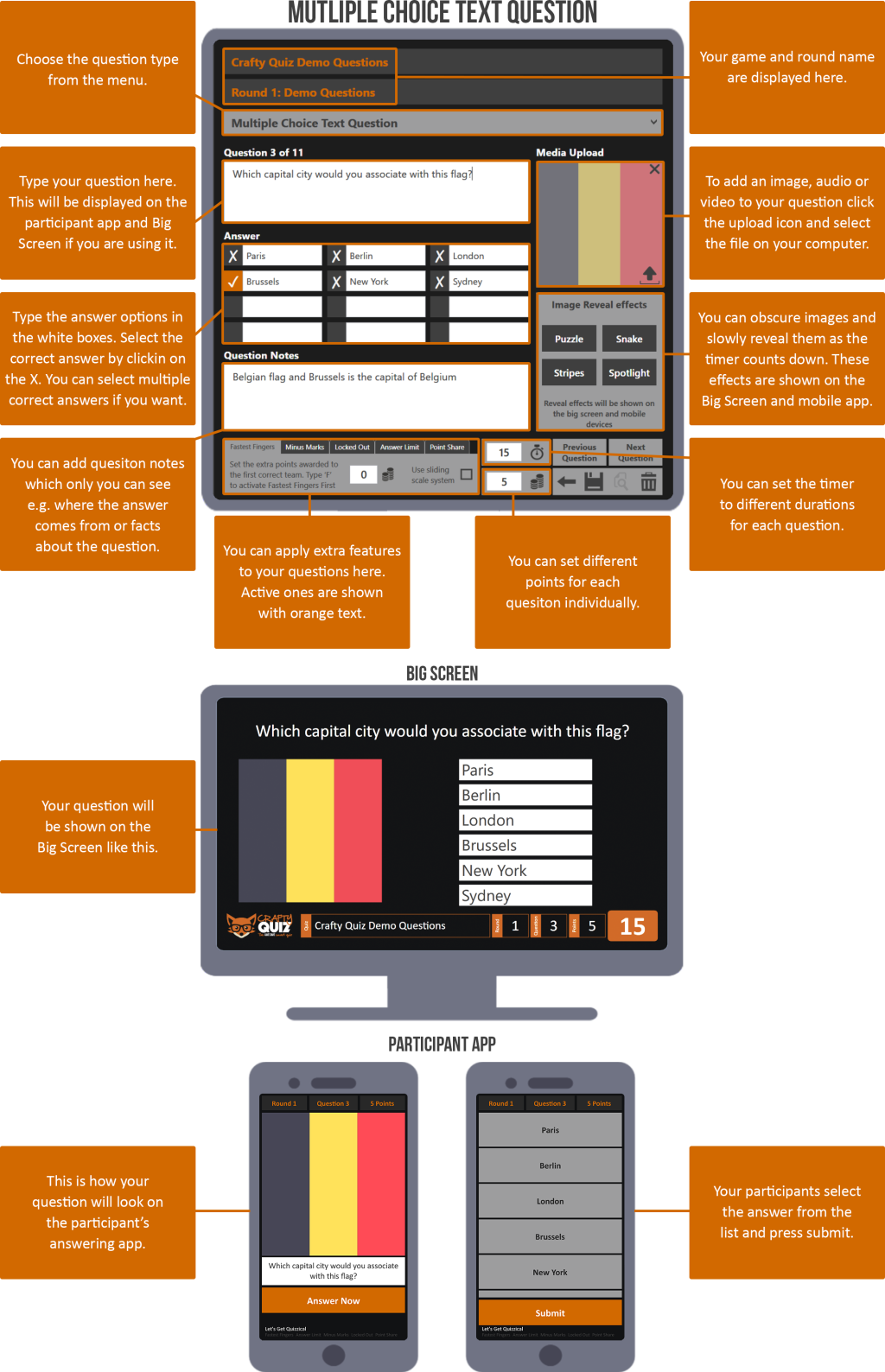
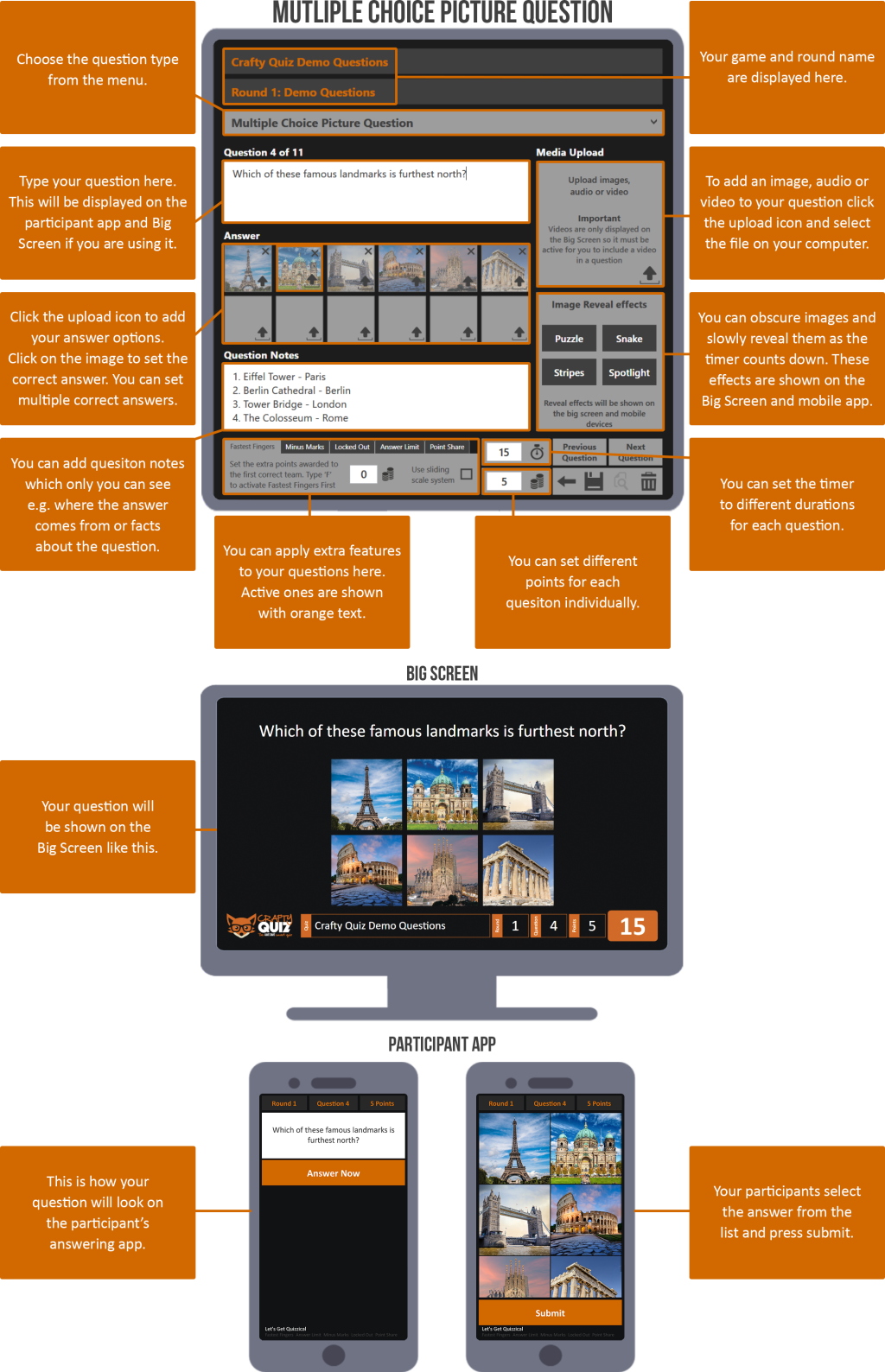
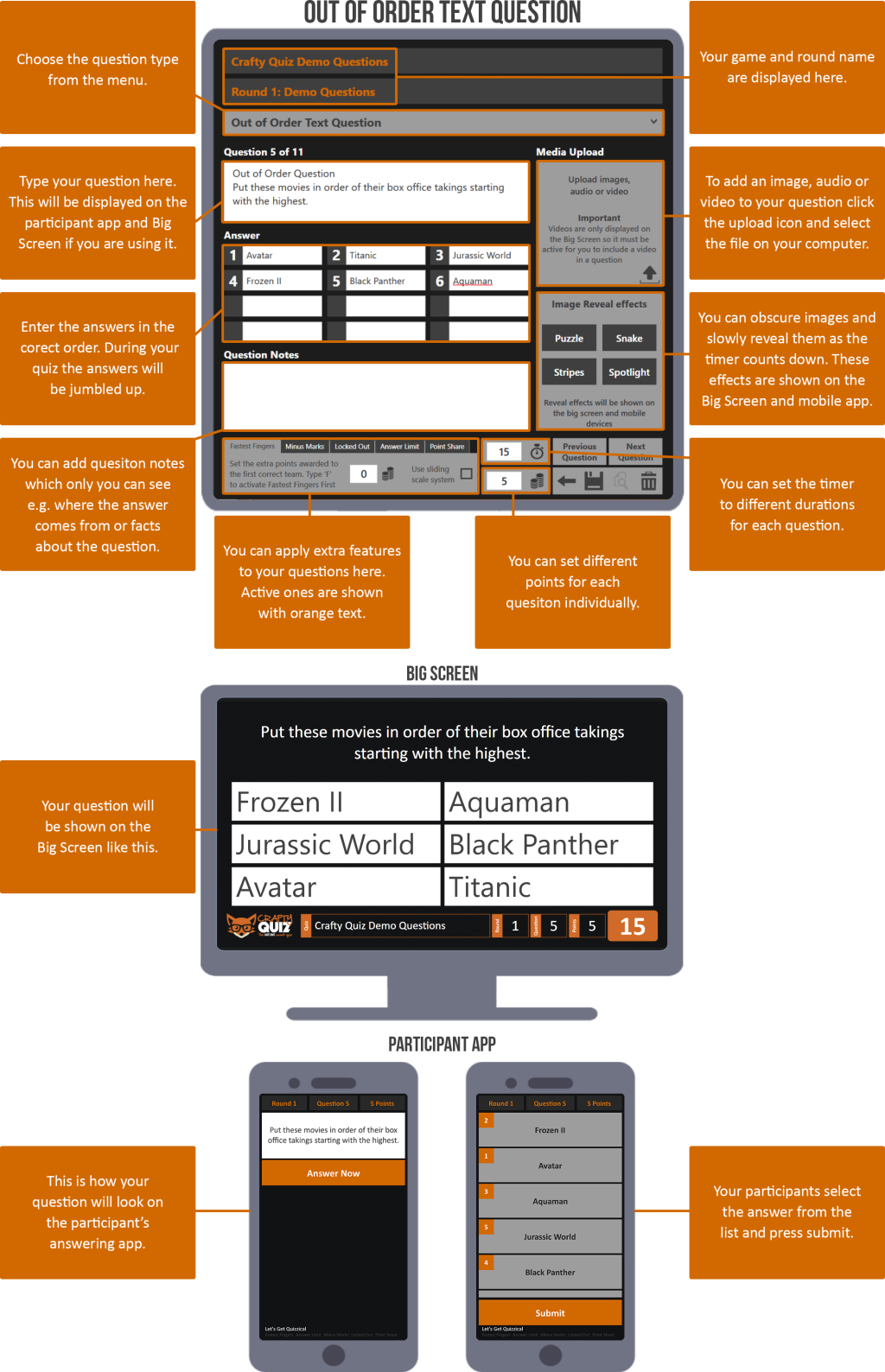
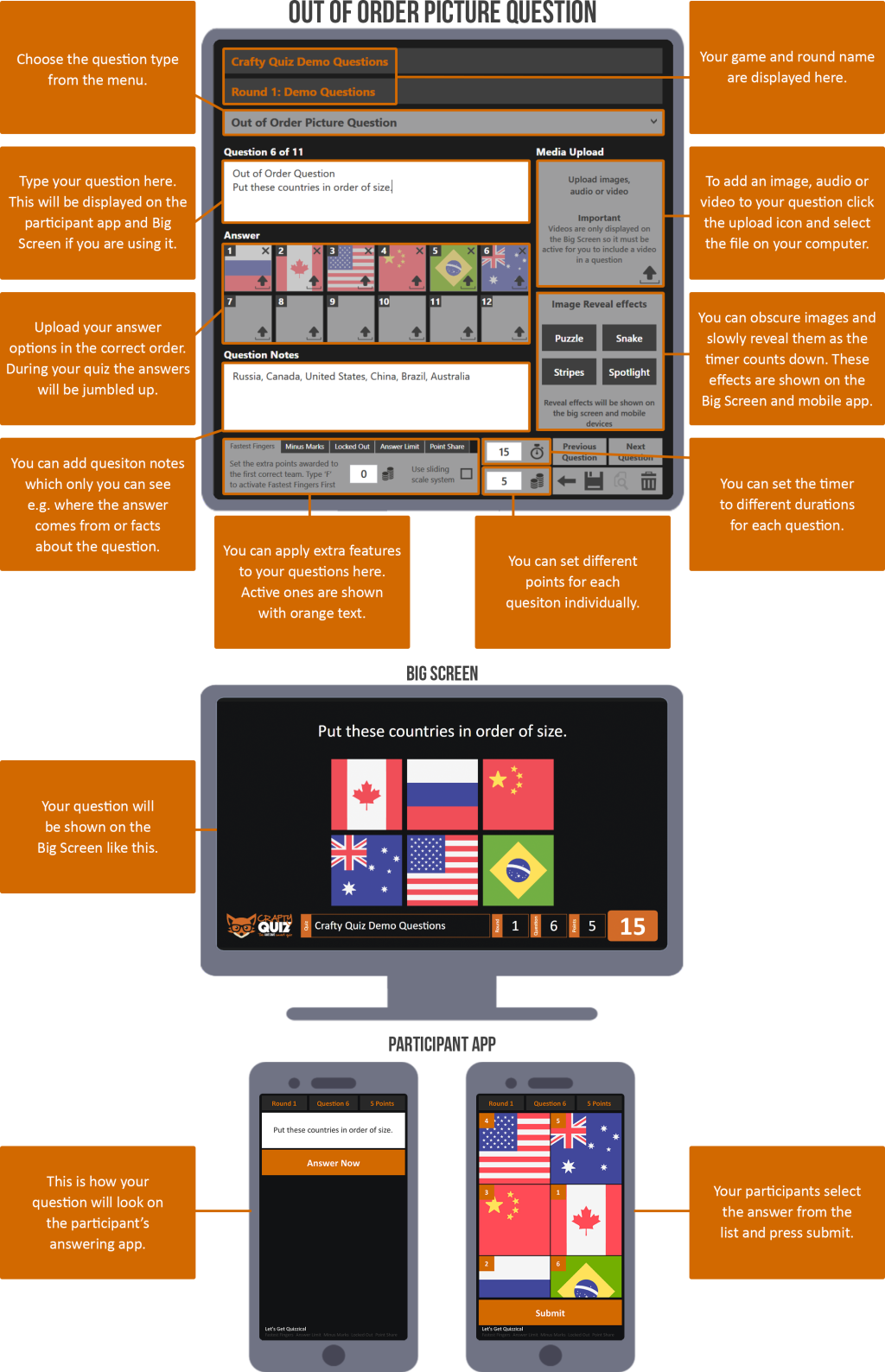
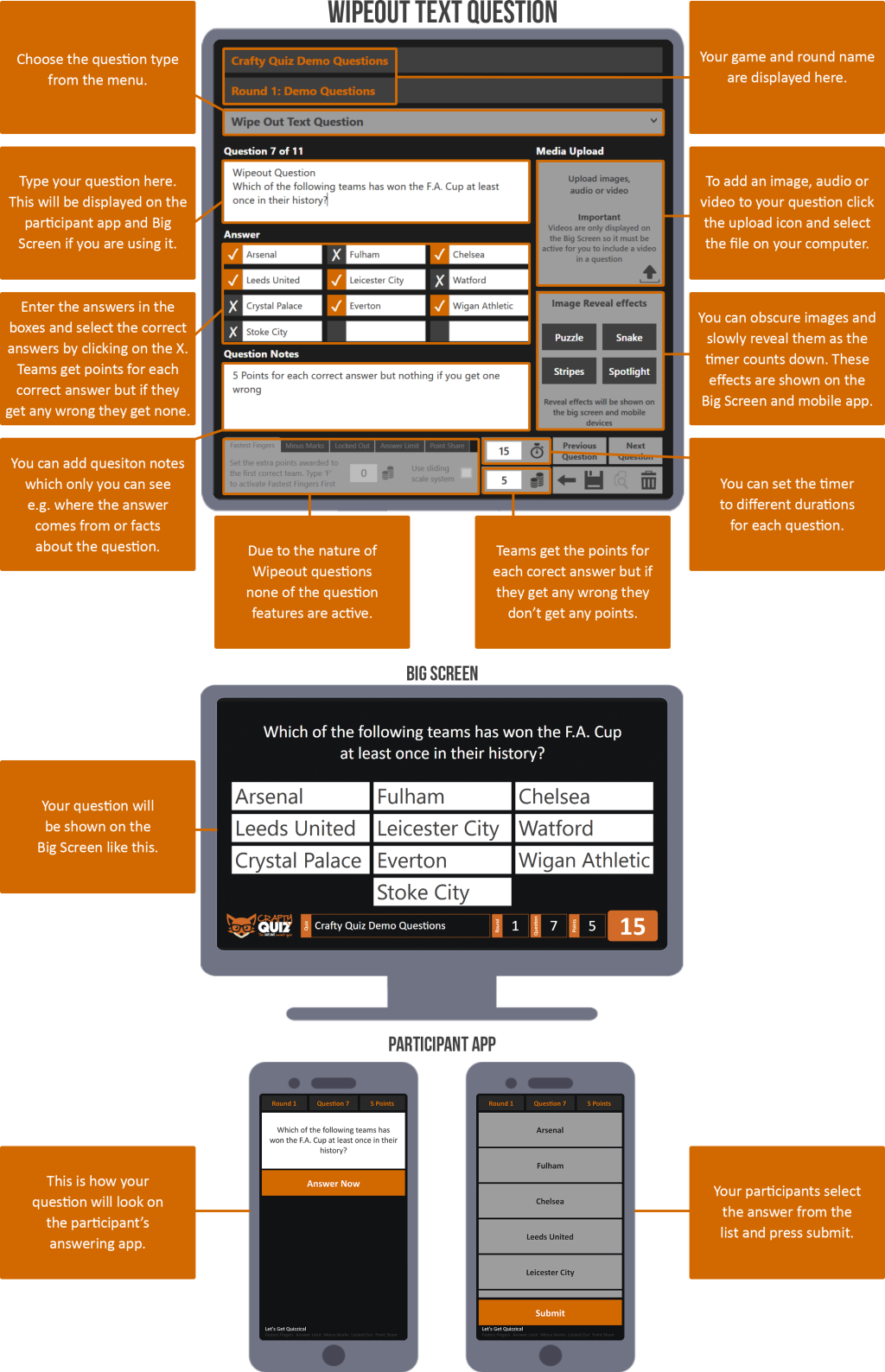
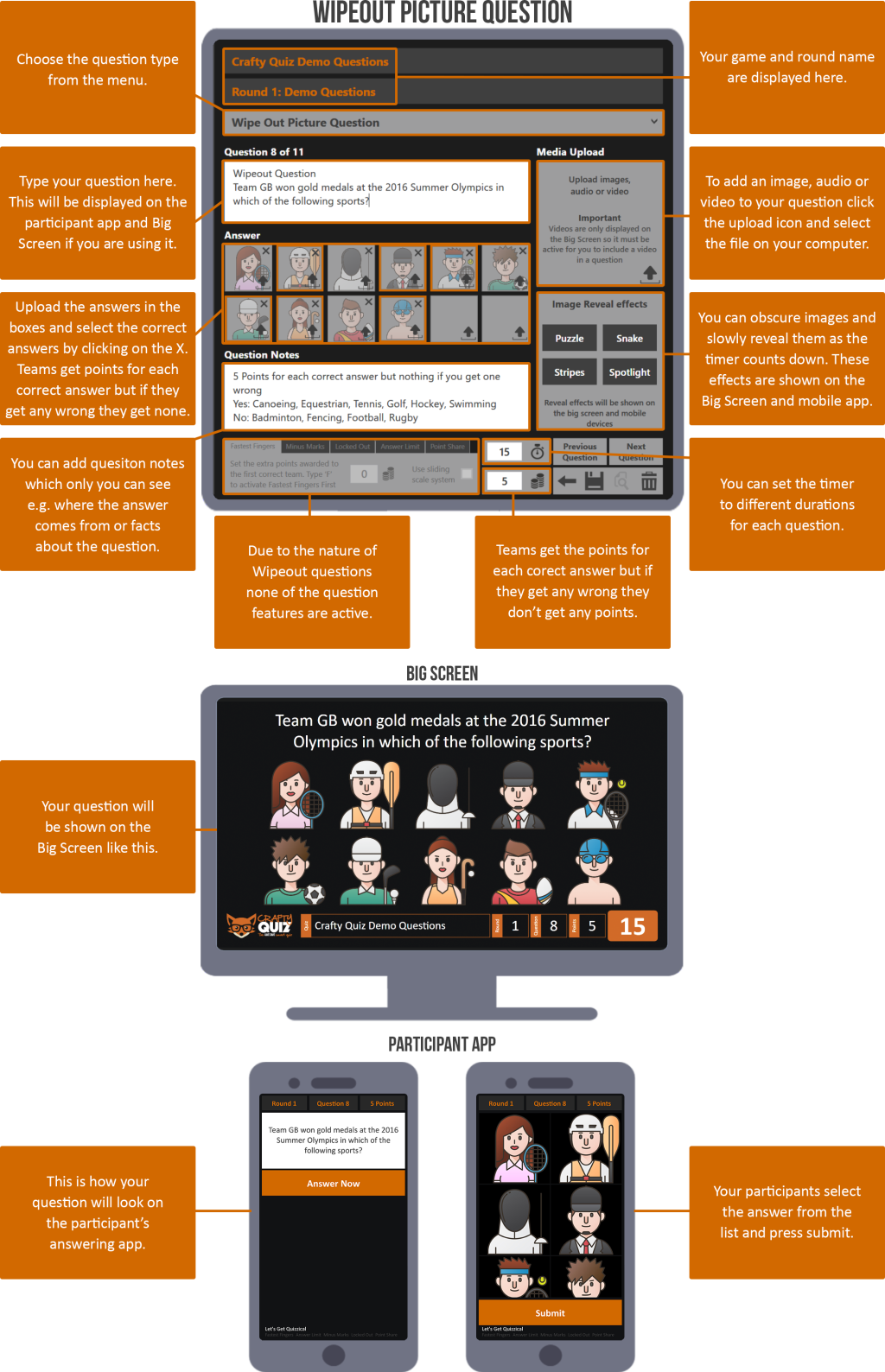
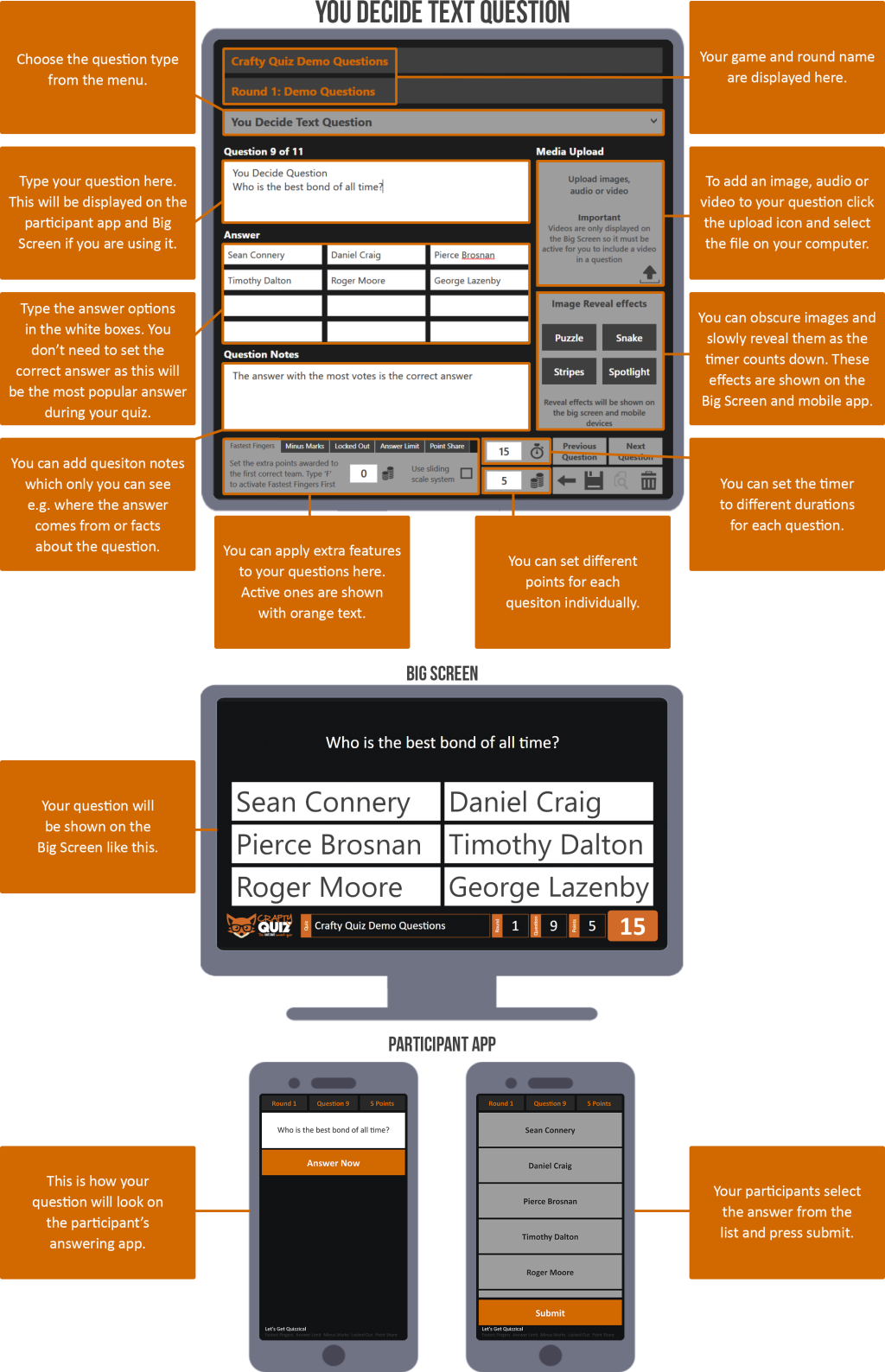
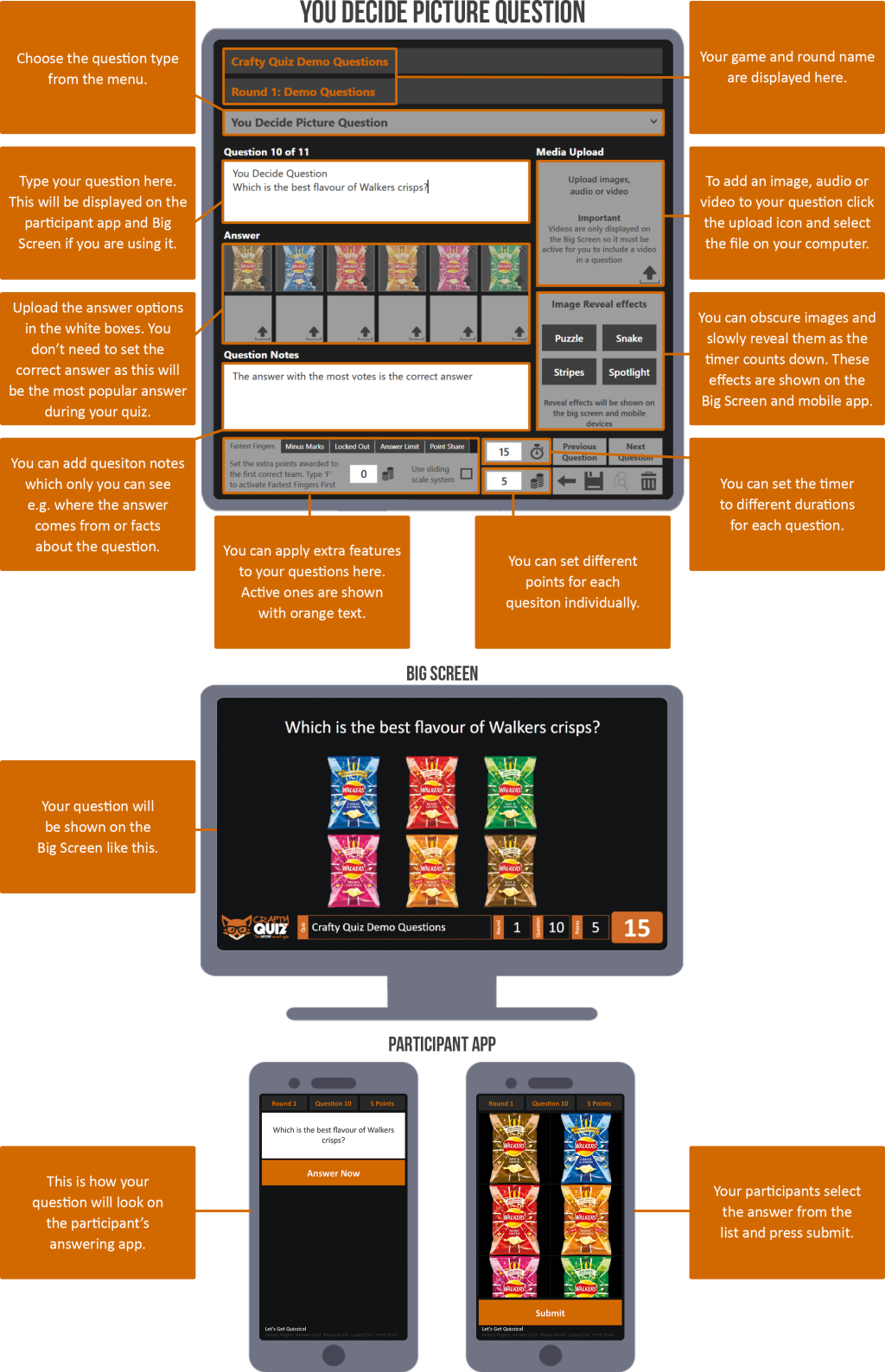
There are 10 different types of question (Standard, Multiple Choice Text and Picture, Out of Order Text and Picture, Wipeout Text and Picture, You Decide Text and picture and Nearest Wins) each with its own screen. You select the type of question from the dropdown menu at the top of the screen.
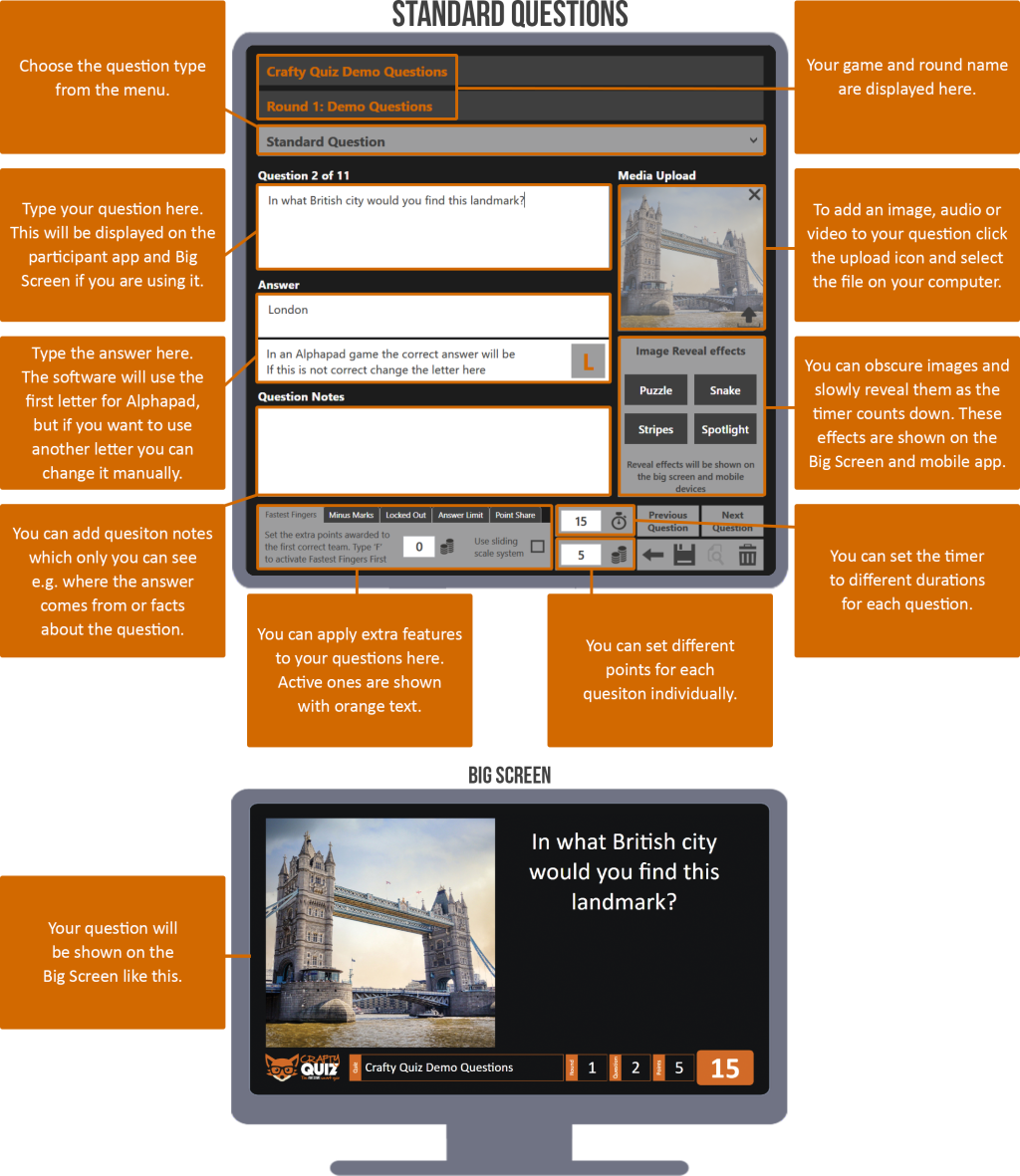
Standard questions can be answered in one of three ways, Full Text, Alphapad and Numberpad.
If the answer to the question starts with a letter you choose whether your players need to answer with Full Text or Alphapad as you are hosting your quiz.
If the answer is a number then players automatically have to answer using the Numberpad.
full text
Numberpad
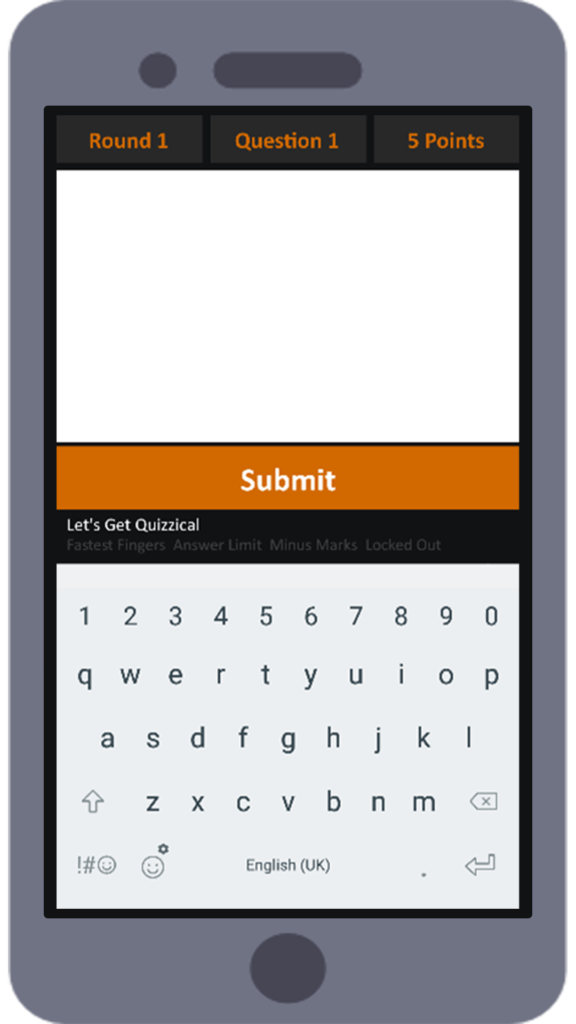
Players type in the full answer, this must be the same as you have typed it into the answer box but it’s not case-sensitive.
If a question has more than one possible answer you can separate them with a comma and the software will accept any of them as correct however, only the first answer will be shown on the Big Screen.
For example: Q) What country hosted the 1996 Summer Olympics?
A) America, USA, US, United States
In this example the software will accept any of the 4 answers as correct but will only display America on the Big Screen.
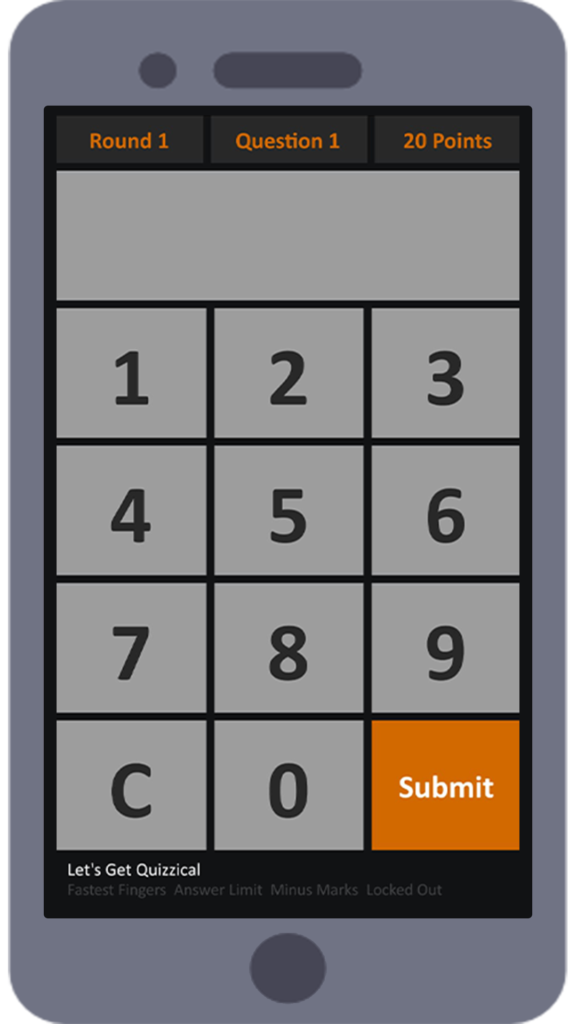
If the answer is a number then players automatically have to answer using the Numberpad.
alphapad
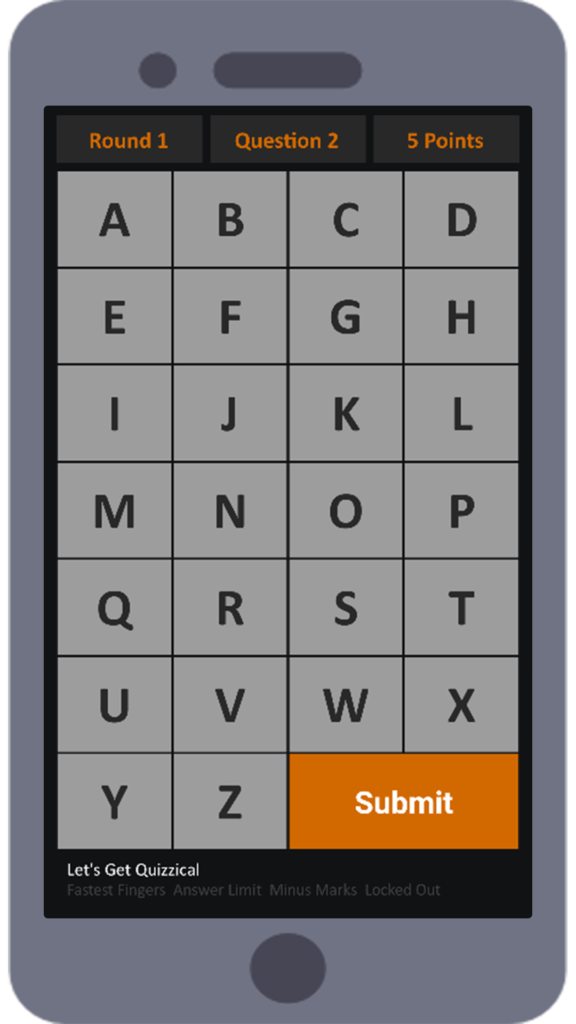
When using the Alphapad teams select the first letter of the answer, so if the answer is ‘London’, they select the letter ‘L’.
When you type in the answer the software will automatically select the first letter to be used with Alphapad however, if you want to use a different letter you can change it manually by typing over the orange letter.
You should make it clear to your teams to ignore ‘The’ in answers like ‘The Wizard of Oz’ (in this case the answer would be ‘W’) as the software will automatically ignore ‘The’ and select the first letter of the next word.
For questions where the answer is a person’s name, Quiz Masters should be specific about whether teams should use first or last names and we suggest ignoring titles like Sir, Dr. however the software won’t do this automatically.

Make Your Own

So Easy To Use
No Answer Sheets
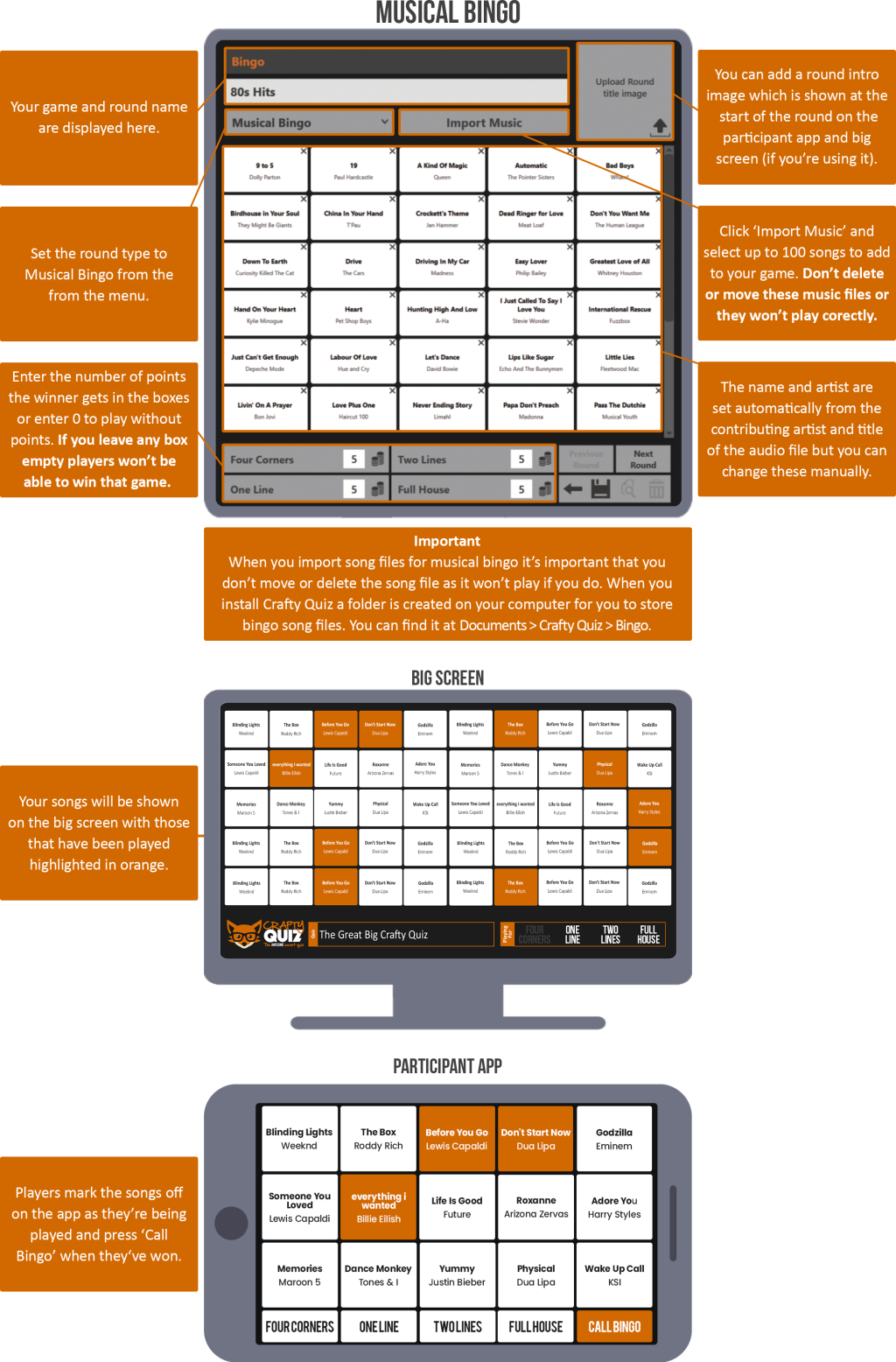
Players take part with our free app so there’s no pens, paper, printing or answer sheets and bingo cards, it’s all automatic.

Fantastic Entertainment

No More Cheating

Quizzes Included
If you don’t have time to make your own quiz there’s loads of ready made quizzes and rounds in the quiz library so you can download one in a few seconds!
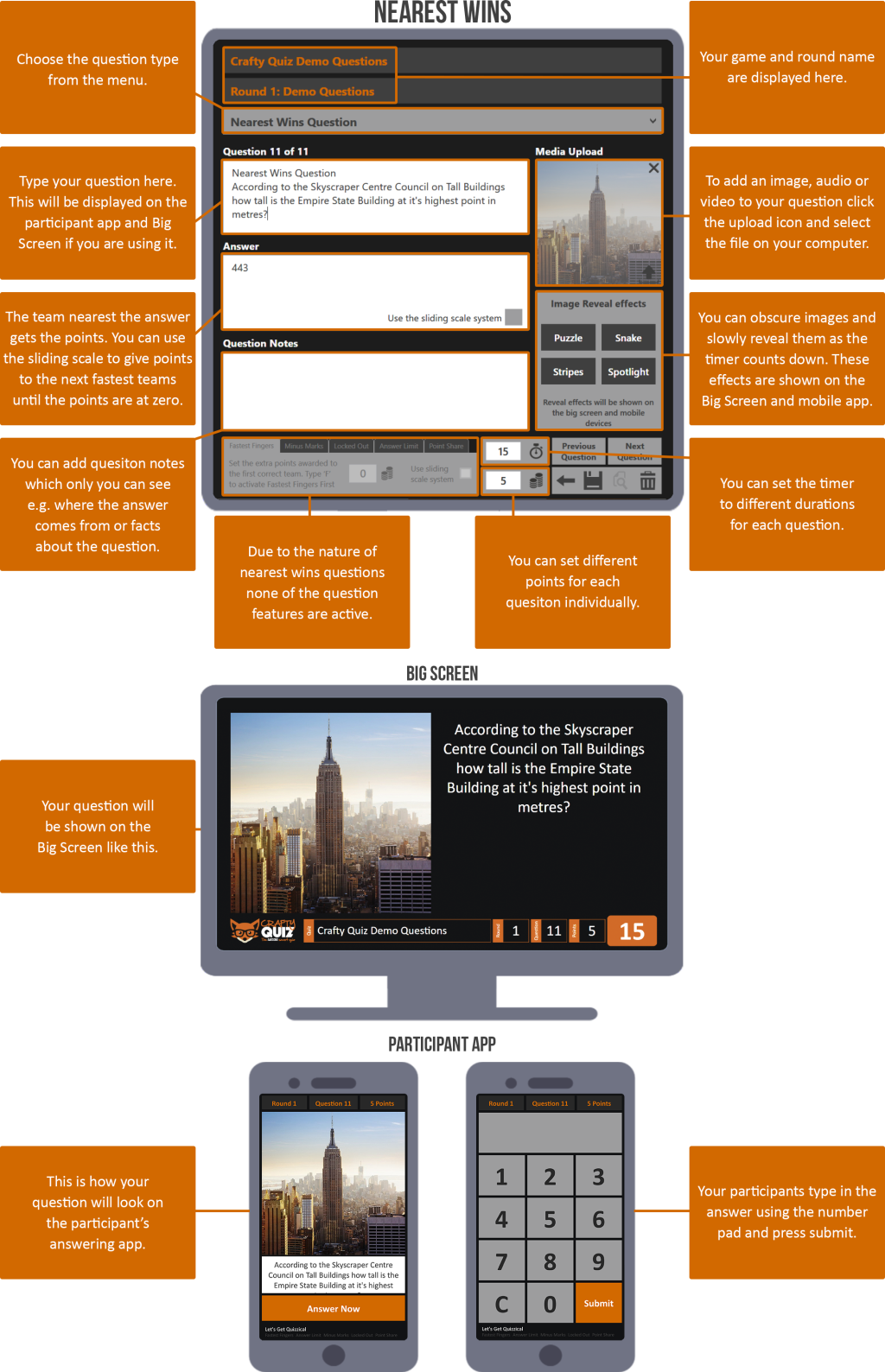
*If 2 or more players are an equal distance from the correct answer the quickest team is given the points.
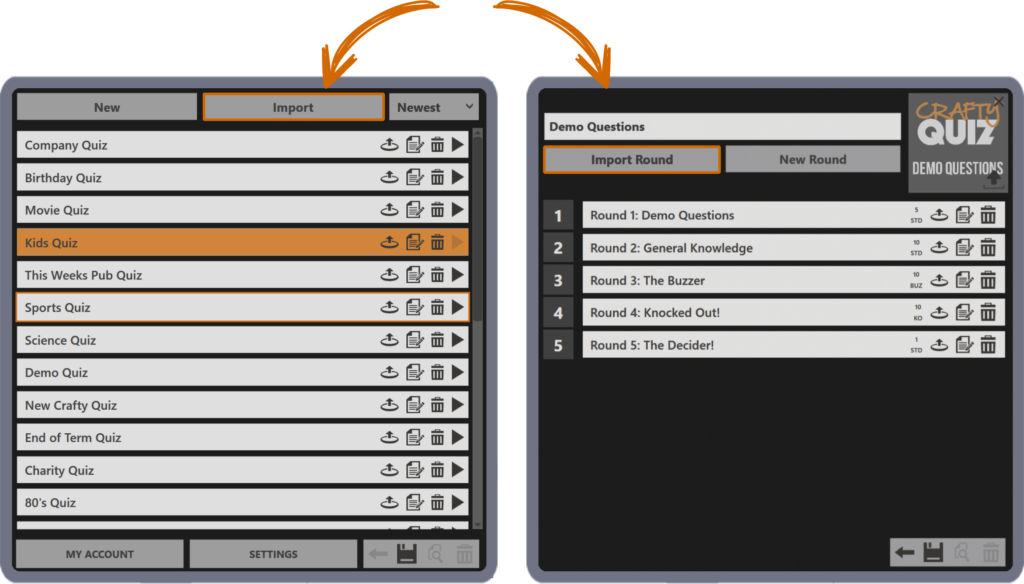
To import a game select ‘Import’ on the home screen or for a round select ‘Import Round’ on the game screen and then select the relevant file on your computer and import it.
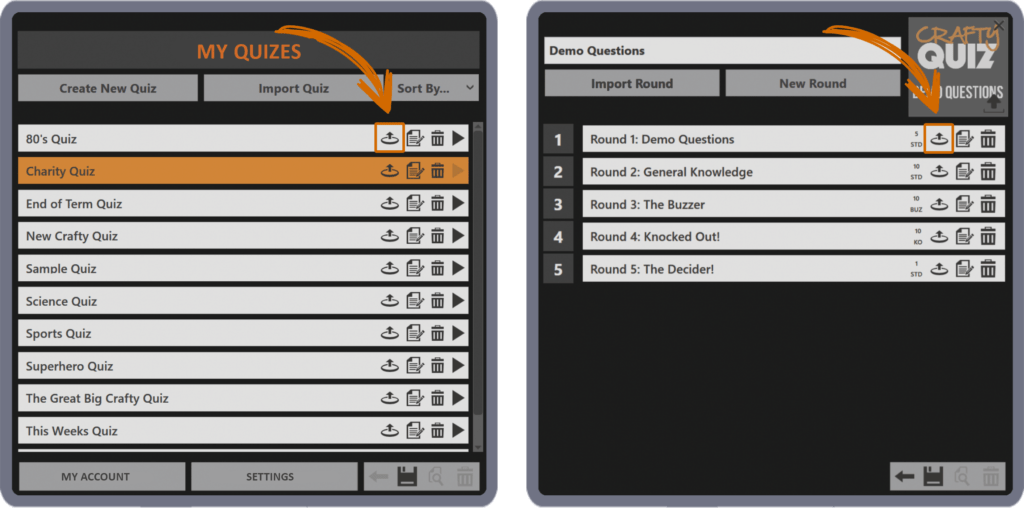
Quiz Master Unlimited subscribers can export games and rounds for anyone else to use.
To export a game or round click on the export icon (the circle and upwards arrow) next to the game or round you want to export. The exported file can then be saved on your computer.
My Account
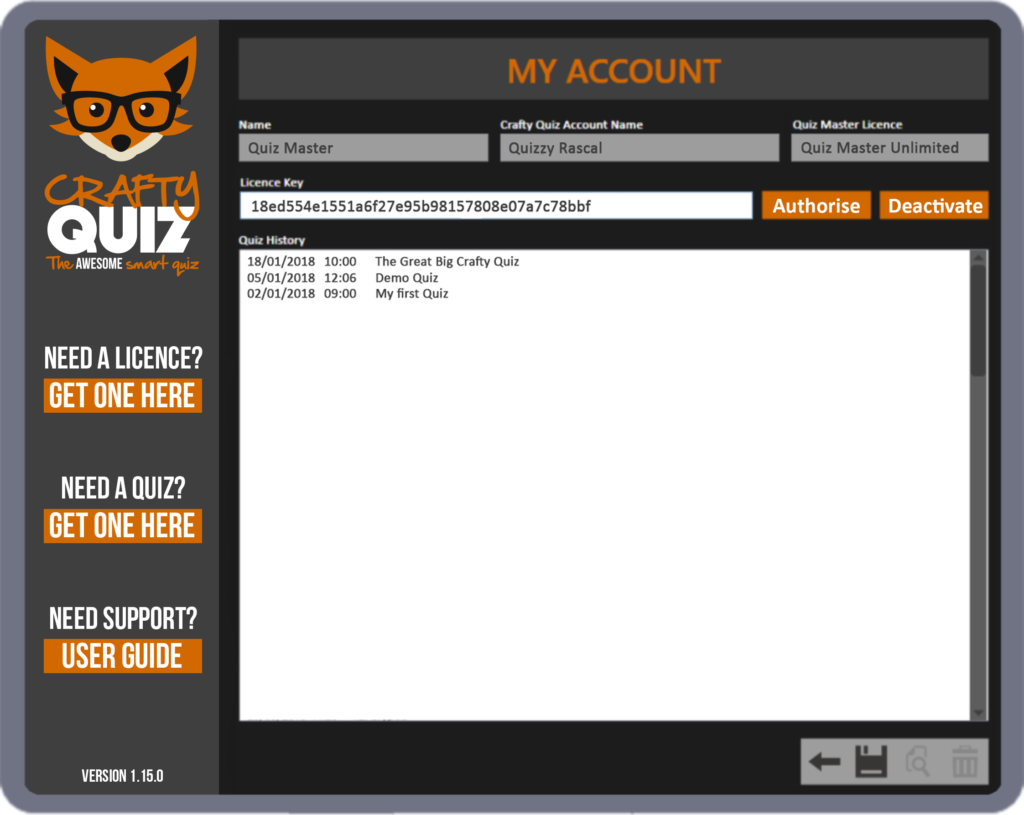
On the My Account screen you can see your account details as entered on our website. Here you can authorise and deactivate your Quiz Master Licence key and you can also see a list of the games you have played.
Settings
On the Settings Screen you can set the default settings for your games. so all new questions and bingo games will have these values. You can also limit the number of devices that can take part in your game.
Standard Quiz Settings
Silence Question Countdown
Check this to stop the countdown audio from playing.
Silence Applause Effects
Check this to turn off the applause sound effect that plays when you announce the question results.
Silence Next Question Sound Effect
Check this to stop the next question sound effect from playing.
Silence End Of Round Drum Roll
Check this to turn off the drum roll sound effect that happens at the end of the round.
Silence No Correct Answer
Check this to turn off the sad trombone sound effect that happens if no one is correct.
Send Question Automatically
If this is ticked the question will automatically be displayed on players devices and the big screen when you press ‘Next Question’. If it is not ticked you can see the question and read it out and then manually send to players devices and the big screen.
Hide Scoreboard at End of Round
Check this to stop the scoreboard being displayed automatically at the end of each round.
Standard Points
Enter the default number of points awarded for a correct answer to be applied to all new questions.
Standard Timer Duration
Enter the default timer duration in seconds to be applied to all new questions.
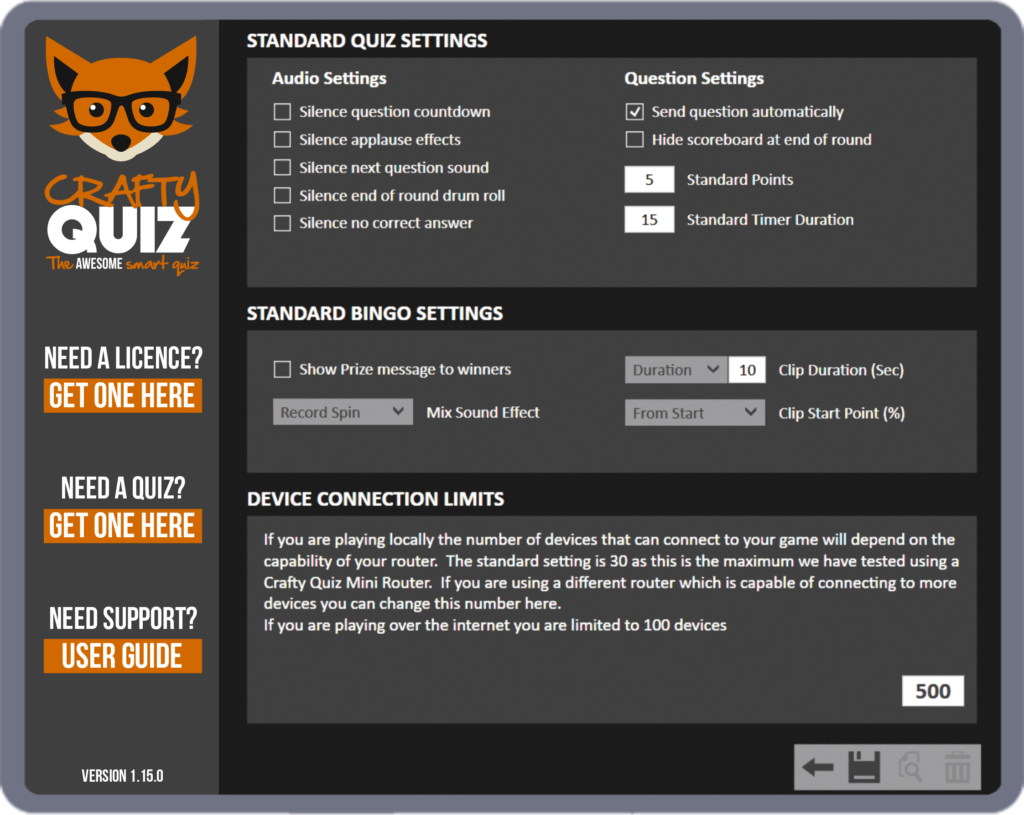
Standard Bingo Settings
Show Prize Message to Winners
If ticked, a player who wins four corners, one line, two lines or a full house will get a message telling them to take their device to the host to collect their prize.
Mix Sound Effect
This is the sound effect that plays clips. You can choose from explosion, glass breaking, horns, record spin or up mix.
Clip Duration (Sec)
You can set the duration of each clip (in seconds) played during your game of musical bingo. You can also set it to ‘Whole Clip’ to play the entire clip. We suggest you use clips between 15 and 30 seconds long.
Clip Start Point (%)
You can set the start point of each clip played during your game of musical bingo. You can set it to ‘From Start’ which will play the clip from the start, ‘Random’ will start the clips at random points or ‘Specify’ which is measured as a percent of the whole song. So if you set it to 50 it will start half way through the clip.
Device Connection Limits
You can set the maximum number of mobile devices that can connect to the software for your event. This will depend on the capabilities of your computer and router.
The standard setting is 30 as this is the maximum we have tested using a Crafty Quiz Mini Router. If you are using an alternative router which is capable of connecting to more devices you can change this number here.